
ScreenCommand
Simple Products Studio
No ratings yetProductivityAges 17+
Screenshots

About this app
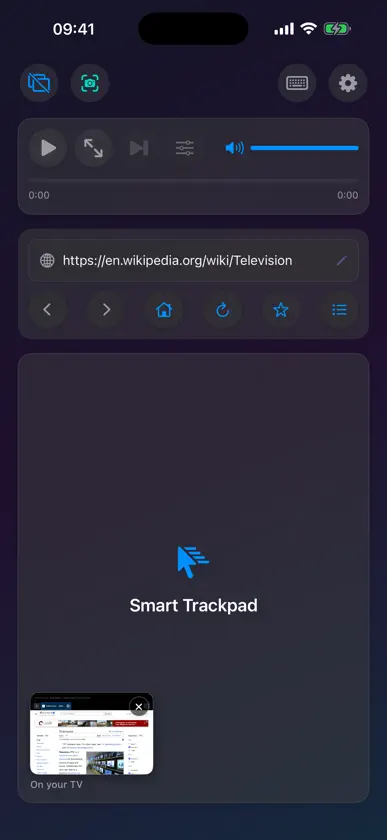
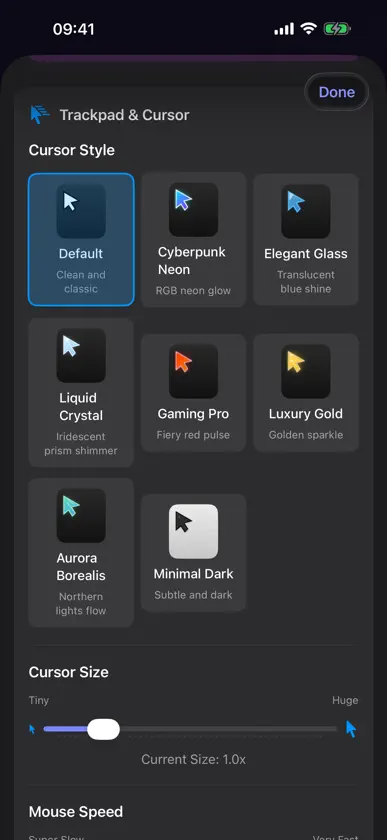
REQUIERE UN MONITOR EXTERNO O TV. ScreenCommand muestra su propio navegador en la TV, y tu iPad o iPhone es trackpad y teclado. No copia tu pantalla, y otras apps no se ejecutan ahí. Sin pantalla, la app solo abre la vista «Conectar monitor externo»: no se navega en el dispositivo. CABLE: iPad con USB-C, o iPhone 15 o posterior excepto iPhone 16e, 17e y Air, con adaptador de USB-C a HDMI o DisplayPort. Netflix, Prime Video, Apple TV+, Paramount+, Peacock y otros servicios de streaming se reproducen así. AIRPLAY: cualquier iPad o iPhone, con un Apple TV en tu Wi-Fi. Inicia Duplicar pantalla con ScreenCommand abierto; la TV muestra solo el navegador. Se ven sitios web, YouTube y otro video web, con un ligero retraso del cursor. Los servicios de streaming necesitan cable. Convierte tu iPad o iPhone y un monitor o TV en una estación de navegación de escritorio, incluso en iPad sin chip M, donde iPadOS no ofrece pantalla extendida. En la pantalla grande se abre un navegador de escritorio completo. Tu iPad o iPhone es el trackpad y el teclado: 8 estilos de cursor, hasta 12 pestañas persistentes, YouTube hasta 4K y, por cable, Netflix y otros servicios de streaming. También funciona con un teclado físico y, en el iPad, con un ratón. Un solo pago, sin suscripción. PANTALLA EXTERNA AL INSTANTE • Navegación web completa en tu monitor • Detección automática: conecta y listo • Optimizada para 1080p, 4K y pantallas ultrapanorámicas CURSOR Y CONTROLES AVANZADOS • Ocho estilos de cursor: Default, Cyberpunk Neon, Elegant Glass, Liquid Crystal, Gaming Pro, Luxury Gold, Aurora Borealis y Minimal Dark • Trackpad fluido con gestos • Ratón o trackpad Bluetooth o USB en el iPad • Desplazamiento natural con dos dedos • Clic, doble clic y clic derecho precisos TECLADO INTELIGENTE • Teclado completo para formularios y búsquedas • Teclado físico con atajos como ⌘L, ⌘T y ⌘R • Barra inteligente: escribe una dirección o una búsqueda • Detecta y enfoca los campos de texto CONTROLES MULTIMEDIA • Reproduce o pausa con un toque • Cambia la calidad de YouTube al vuelo, hasta 4K (2160p), incluso en pantalla completa • Control de volumen deslizante en pantalla • Avanza y retrocede en la barra de progreso • Activa y desactiva la pantalla completa • Modo Cine (Cinema Mode) para ver sin distracciones NAVEGACIÓN POTENTE • Hasta 4 ventanas de 12 pestañas, guardadas entre sesiones • Dos ventanas lado a lado • Autorrelleno de contraseñas • Modo escritorio para compatibilidad total con las webs • «Qué funciona aquí» muestra tu conexión • Evita redirecciones no deseadas a otras apps • Bloqueo de ventanas emergentes, ajustable por sitio PERSONALIZACIÓN • Tamaño del cursor ajustable (0,2x - 5,0x) • Velocidad ajustable: precisión o rapidez (0,5x - 5,0x) • Configura la página de inicio • Abre el navegador automáticamente al conectar el monitor PRIVACIDAD ANTE TODO • Sin recopilación de datos ni seguimiento • Sin analíticas de terceros • Todo se procesa en tu dispositivo • No necesita conexión a internet (salvo para navegar) IDEAL PARA: • Profesionales que necesitan más espacio de trabajo • Estudiantes que investigan en pantalla grande • Creadores que gestionan redes sociales • Quien quiera navegar como en una computadora CÓMO FUNCIONA: 1. Conecta el iPad o iPhone a un monitor (USB-C o adaptador HDMI) o usa AirPlay con un Apple TV 2. Abre ScreenCommand 3. El navegador se abre solo en la pantalla externa 4. Usa tu iPad o iPhone como trackpad y centro de control 5. Disfruta de la navegación de escritorio REQUISITOS: • iPad con puerto USB-C y iPadOS 17.0 o posterior (no hace falta chip de la serie M) • O iPhone con iOS 17.0 o posterior. Para usar un cable, necesita salida de video por USB-C (iPhone 15 o posterior, excepto iPhone 16e, iPhone 17e y iPhone Air); cualquier iPhone puede usar AirPlay • Monitor externo o TV • Adaptador USB-C a HDMI/DisplayPort (o USB-C directo), o un Apple TV para AirPlay (por cable, la latencia del cursor es la más baja)
What's new
Version 2.5 · Nov 8, 2026
ScreenCommand 2.5 brings your languages to the compact keyboard. • The compact keyboard now follows the keyboards you've added in Settings, with the same keys as your iPad's or iPhone's own keyboard for each language: German, French, Spanish, Turkish, Russian, Greek, Arabic, Hebrew, Korean and more. The globe key switches between them, and the space bar shows the one in use. • Hold a letter to see its accents, then slide to the one you want and lift your finger: á, é, ñ, ö, ő, ç, ß, ł and more. With Shift on, you get capitals. • Tap 123, then hold the quote, hyphen, ? or ! key for „ « » – — ¿ ¡. • On iPad, swipe down on a letter key to type the gray symbol shown on it: numbers, -, /, @ and more, without switching to 123. • For Japanese, Chinese and dictation, the globe key still brings up your iPad's or iPhone's own keyboard, after your other languages. Hold the globe key to pick any keyboard from a list. • The trackpad now always stops just above the keyboard, and the compact keyboard takes up less room. • Not Working? is new on the connect screen and in Settings: tap what's wrong and see the fix, with nothing to type. • Clearer about AirPlay: it needs an Apple TV, and the TV shows ScreenCommand's browser, not a copy of your screen. • Drag on the trackpad: double-tap, keep your finger down and move it to select text or move a slider, on iPad and iPhone. • Downloads work: click a file on the TV, say yes on your iPad or iPhone, and save it wherever you like. • Games and music sites now have sound, and the volume slider controls it. • Your iPad or iPhone stays awake while a TV is connected, and a video carries on when you come back from a call or another app. • Larger text and stronger contrast throughout the app, and clearer help for iPad in Windowed Apps or Stage Manager. Questions or feedback? support@screencommand.app
More from Simple Products Studio


You might also like
 exBrowserRyosuke Kawachi
 One Tap HabitsKODY MICHAEL GENTRY
 Reader Ink: editor PDFILKER YILDIRIM
 Saint Francis ScheduleJohannes Royset
 topoAreaPaulo Correia
 BiodibalFundacio Universitat-Empresa de les Illes Balears
 Up+ FibraRafael Machado
 DeskStateAbraham Rubio
 Spokt: Read AloudMusab Alhariri
 XeOS: Desktop Mode ExperienceMarian-Daniel Filipovici