
MarkSS
Yoshiyuki Yamashita
No ratings yetProductivityAges 4+
Screenshots


About this app
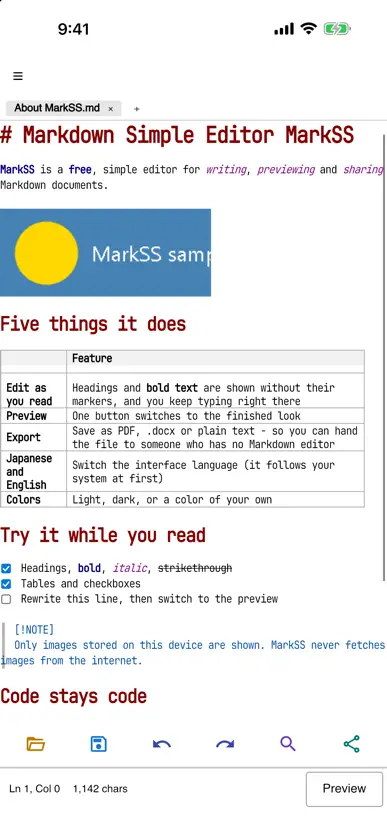
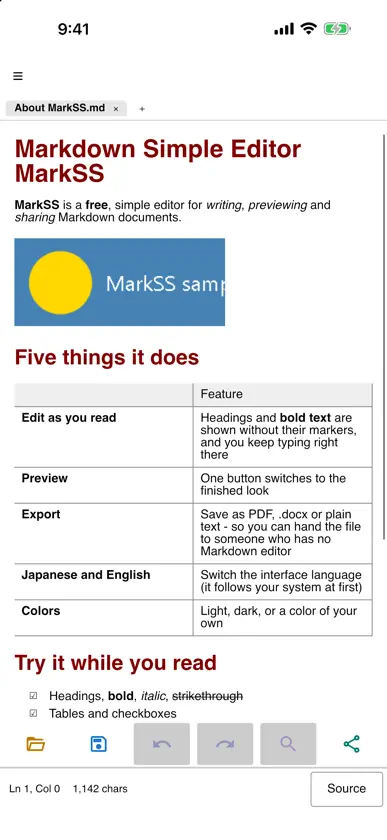
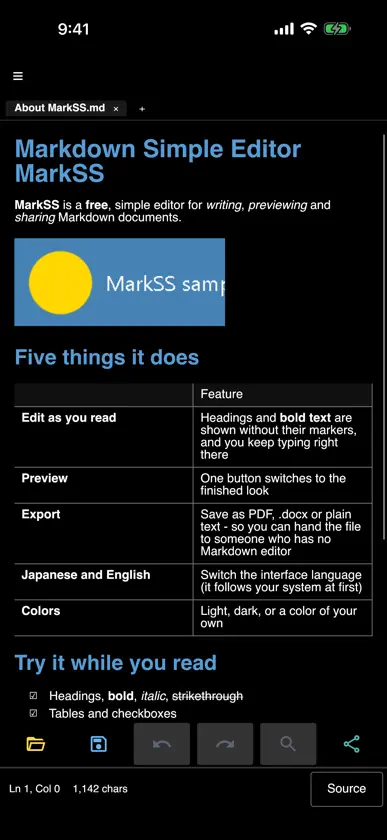
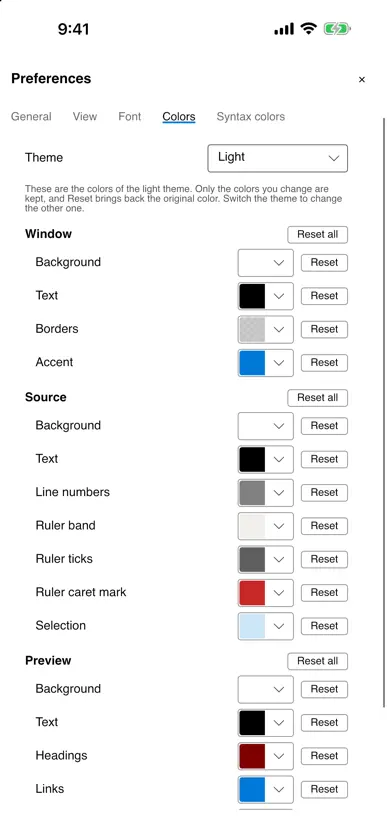
MarkSS (Markdown Simple Editor MarkSS) is a free editor for writing Markdown (.md) files. It leaves out the extras and concentrates on opening a file and letting you write. It works on iPhone and iPad. ■ The source view already looks close to the preview Headings are shown larger, and bold, italics, links, tables and images are displayed with the Markdown symbols hidden. You can edit right there, and the symbols appear only on the line with the cursor. You can switch to showing all the symbols from the menu. ■ Preview in one tap Switch between the source and the preview with a single button. You can select and copy text in the preview as well. ■ Export to PDF, .docx and plain text Export to PDF, .docx or plain text (.txt). In the .docx file the headings and tables become real document headings and tables - so you can hand the file to someone who has no Markdown editor. ■ Japanese and English The interface is available in Japanese and English. It follows your OS language at first and can be switched in the settings. ■ Light, dark, or a colour of your own Choose the theme from Light, Dark or Follow OS settings. You can also change the colour of each kind of Markdown element such as headings, bold text and links. ■ Straightforward from the moment you open a file In the Files app, tap a .md file and choose MarkSS to open it, or send one to MarkSS from another app's Share menu. Tabs let you keep several files open. Find and replace and larger or smaller text are there too. ■ Price and data Free. No advertising. No account required. The application itself never talks to the internet (the preview does not fetch images from the web, and links such as the help open in your browser).
What's new
Version 1.0.1 · Nov 6, 2026
- Text selection now follows the iPhone and iPad standard: - Press and hold to show a magnifier above your finger, then drag to move the cursor. On iPad, the magnifier now has the standard iPad shape. - Selection handles are now a vertical line with a dot at the end. - The menu for selected text is now the standard iPhone/iPad edit menu (Cut, Copy, Paste, Select All), shown in the standard position. Paste no longer asks for confirmation. - Tapping the cursor again now also offers Select. - Tapping the selected text shows or hides the menu. - Tapping the empty area below the text moves the cursor to the end. - Closing the keyboard hides the selection; tap the text to bring back the same selection. - On iPad, tapping the blank space to the right of a selected line clears the selection and moves the cursor to the end of that line. - In the preview, you can now press and hold or double-tap to select a word, drag the handles to extend it, and copy it. The menu offers Copy, Copy as plain text, and Select All. - When you start typing Japanese over selected text, the selection is now removed and the text being converted is visible. - In the Find and Replace fields, tapping the text during Japanese conversion no longer puts the unconverted text into the document. Closing the keyboard also ends input in the field. - The menu in text fields (Cut, Copy, Paste) is now shown in the app's language. - Images next to a .md file in iCloud Drive, On My iPhone or On My iPad can now be shown: tap Allow Folder… above the text and choose the folder. MarkSS remembers it for next time. - The Return key no longer closes the keyboard. - The line with the cursor is no longer hidden when the keyboard appears. - Scrolling the text with your finger no longer moves the cursor or opens the keyboard. - Undo and Redo on the bar above the keyboard have moved to the left end. - On narrow screens, the Preview / Source button at the bottom right is no longer hidden while a message is shown. - The export menu and screens now consistently use the name ".docx". - Bug fixes: - A crash that could occur when switching or closing a tab while text was selected. - Untitled text could fail to come back after iPhone/iPad closed MarkSS in the background. - A gap could remain between the keyboard and the bar at the bottom. - Opening the same file from the folder button on the bottom toolbar and from the Files app opened two tabs. - On iPhone, the keyboard did not appear the first time you opened search (the magnifying glass on the bottom toolbar) after launch.
You might also like
 Template MailRobert Van Deutekom
 Markdown to PDF: Pro EditorZain Aaban
 Typinator MobileErgonis
 Rocket TypistDaniel Witt
 PhraseExpressBartels Media GmbH
 Sally AIAliru GmbH
 ExcalidrawZChocoford Tech
 Whisper Notes - Speech to TextSmashMelon LLC
 Glasp: AI Summary & HighlightGlasp Inc.
 Open as AppOpen as App GmbH