
ScreenCommand
Simple Products Studio
No ratings yetProductivityAges 17+
Screenshots

About this app
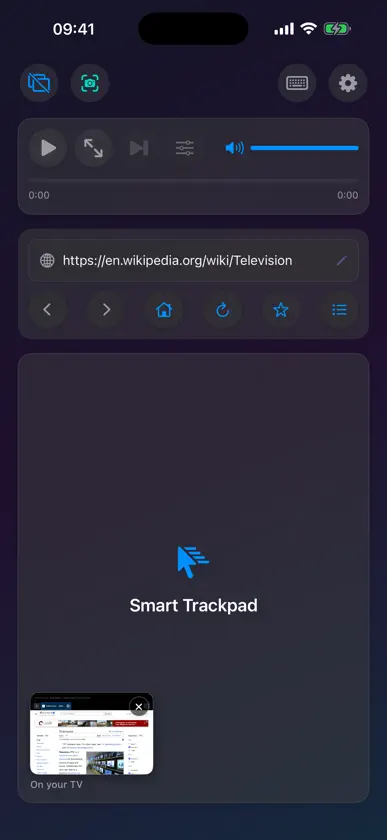
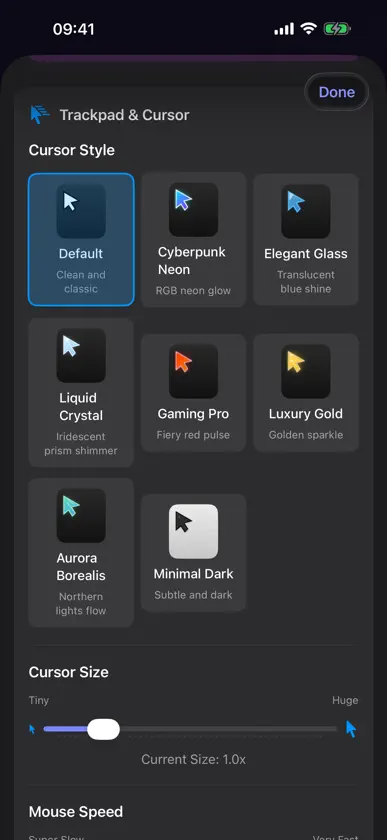
REQUIRES AN EXTERNAL MONITOR OR TV. ScreenCommand shows its own web browser on the TV, and your iPad or iPhone becomes the trackpad and keyboard. It doesn't copy your screen, and other apps can't run on the TV. Without a display, the app opens to a "Connect External Monitor" setup screen; no on-device browsing. CABLE: USB-C iPad, or iPhone 15 or later except iPhone 16e, iPhone 17e and iPhone Air, with a USB-C to HDMI or DisplayPort adapter. Netflix, Prime Video, Apple TV+, Paramount+, Peacock and other streaming services play this way. AIRPLAY: any iPad or iPhone, with an Apple TV on your Wi-Fi. Start Screen Mirroring with ScreenCommand open; the TV shows only the browser. Websites, YouTube and other web video play, with slight cursor lag. Streaming services need a cable. Turn your iPad or iPhone and an external monitor or TV into a desktop browsing workstation, even on a non-M iPad, where iPadOS extended display isn't available. The big screen gets a full desktop-class browser. Your iPad or iPhone becomes the trackpad and keyboard: 8 cursor styles, up to 12 persistent tabs, YouTube quality up to 4K, and Netflix and other streaming over a cable. A hardware keyboard works too, and so does a mouse on iPad. Pay once, no subscription. SEAMLESS EXTERNAL DISPLAY • Full web browsing on your external monitor • Automatic display detection - plug and play • Optimized for 1080p, 4K, and ultrawide displays ADVANCED CURSOR & CONTROLS • Eight stunning cursor styles: Default, Cyberpunk Neon, Elegant Glass, Liquid Crystal, Gaming Pro, Luxury Gold, Aurora Borealis, Minimal Dark • Smooth trackpad navigation with gesture support • Use a Bluetooth or USB mouse or trackpad on iPad • Natural scrolling with two-finger gestures • Precise click, double-click, and right-click support INTELLIGENT KEYBOARD INPUT • Full keyboard support for web forms and search • Type on a hardware keyboard, with shortcuts like ⌘L, ⌘T and ⌘R • Smart URL bar: type a web address or a search query • Automatic input field detection and focus MEDIA CONTROLS • Play/pause video with one tap • Change YouTube video quality on the fly, up to 4K (2160p), even in fullscreen • Adjust media volume with an on-screen slider • Seek through videos with intuitive progress bar • Fullscreen toggle support • Cinema mode for distraction-free viewing POWERFUL BROWSING FEATURES • Up to 4 browser windows with 12 tabs each, saved between sessions • Two windows side by side on the TV • Password AutoFill for sign-ins on the TV • Desktop mode for full website compatibility • "What Works Here" shows how your device connects • Prevents unwanted app redirects • Pop-up blocker with a per-site switch CUSTOMIZATION • Adjustable cursor size (0.2x - 5.0x) • Adjustable mouse speed for precision or speed (0.5x - 5.0x) • Configure homepage URL • Auto-launch browser on monitor connect PRIVACY FIRST • No data collection or tracking • No third-party analytics • All processing happens locally on your device • No internet connection required (except for browsing) PERFECT FOR: • Professionals who need a larger workspace • Students doing research on a bigger screen • Content creators managing social media • Anyone wanting desktop browsing from an iPad or iPhone HOW IT WORKS: 1. Connect your iPad or iPhone to an external monitor (USB-C or HDMI adapter), or AirPlay to an Apple TV 2. Launch ScreenCommand 3. Browser automatically opens on your external display 4. Use your iPad or iPhone as a trackpad and control center 5. Enjoy desktop-class browsing! REQUIREMENTS: • iPad with a USB-C port on iPadOS 17.0 or later (no M-series chip required) • Or iPhone on iOS 17.0 or later. A cable needs USB-C video out (iPhone 15 or later, except iPhone 16e, iPhone 17e and iPhone Air); any iPhone can use AirPlay • External monitor or TV • USB-C to HDMI/DisplayPort adapter (or direct USB-C connection), or an Apple TV for wireless AirPlay (wired recommended for the lowest cursor latency)
What's new
Version 2.5 · Nov 8, 2026
ScreenCommand 2.5 brings your languages to the compact keyboard. • The compact keyboard now follows the keyboards you've added in Settings, with the same keys as your iPad's or iPhone's own keyboard for each language: German, French, Spanish, Turkish, Russian, Greek, Arabic, Hebrew, Korean and more. The globe key switches between them, and the space bar shows the one in use. • Hold a letter to see its accents, then slide to the one you want and lift your finger: á, é, ñ, ö, ő, ç, ß, ł and more. With Shift on, you get capitals. • Tap 123, then hold the quote, hyphen, ? or ! key for „ « » – — ¿ ¡. • On iPad, swipe down on a letter key to type the gray symbol shown on it: numbers, -, /, @ and more, without switching to 123. • For Japanese, Chinese and dictation, the globe key still brings up your iPad's or iPhone's own keyboard, after your other languages. Hold the globe key to pick any keyboard from a list. • The trackpad now always stops just above the keyboard, and the compact keyboard takes up less room. • Not Working? is new on the connect screen and in Settings: tap what's wrong and see the fix, with nothing to type. • Clearer about AirPlay: it needs an Apple TV, and the TV shows ScreenCommand's browser, not a copy of your screen. • Drag on the trackpad: double-tap, keep your finger down and move it to select text or move a slider, on iPad and iPhone. • Downloads work: click a file on the TV, say yes on your iPad or iPhone, and save it wherever you like. • Games and music sites now have sound, and the volume slider controls it. • Your iPad or iPhone stays awake while a TV is connected, and a video carries on when you come back from a call or another app. • Larger text and stronger contrast throughout the app, and clearer help for iPad in Windowed Apps or Stage Manager. Questions or feedback? support@screencommand.app
More from Simple Products Studio


You might also like
 exBrowserRyosuke Kawachi
 One Tap HabitsKODY MICHAEL GENTRY
 DeskStateAbraham Rubio
 XeOS: External Display DesktopMarian-Daniel Filipovici
 PXS External Screen DesktopbyteNine AS
 Spokt: Read AloudMusab Alhariri
 InfiniteX2P Pro — Desktop ModeJoonwoo Kim
 topoAreaPaulo Correia
 Up+ FibraRafael Machado
 Multitasking OS: ProDocktiveGautam Sukhramani