
VibeBlocks: Learn to Use AI
Hayeon Jeong
No ratings yetEducationAges 4+
Screenshots



About this app
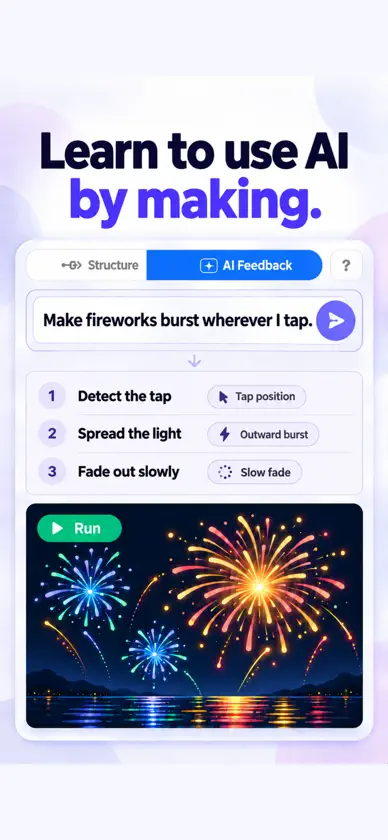
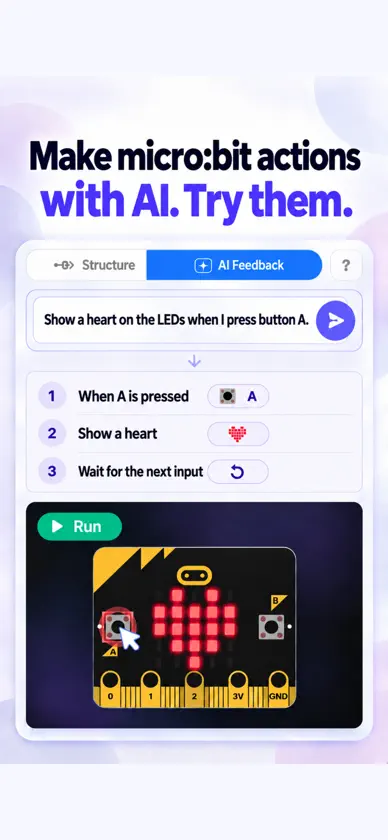
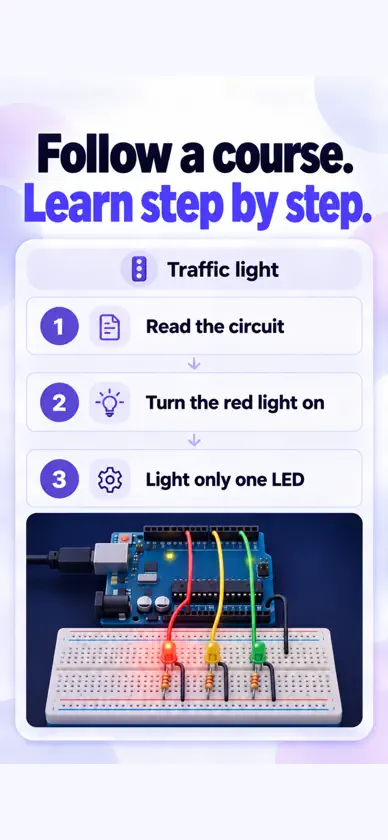
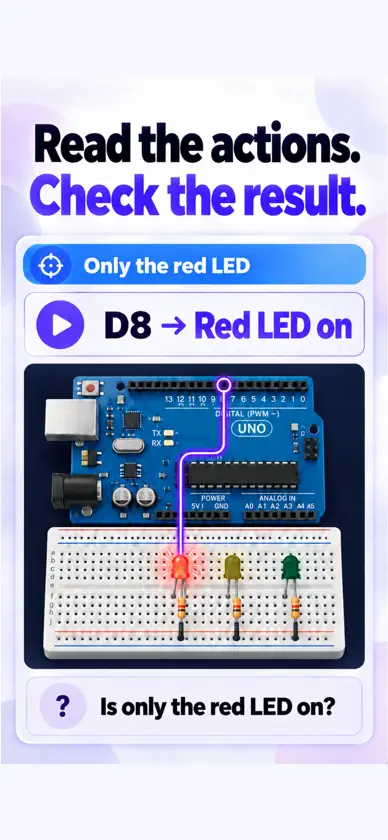
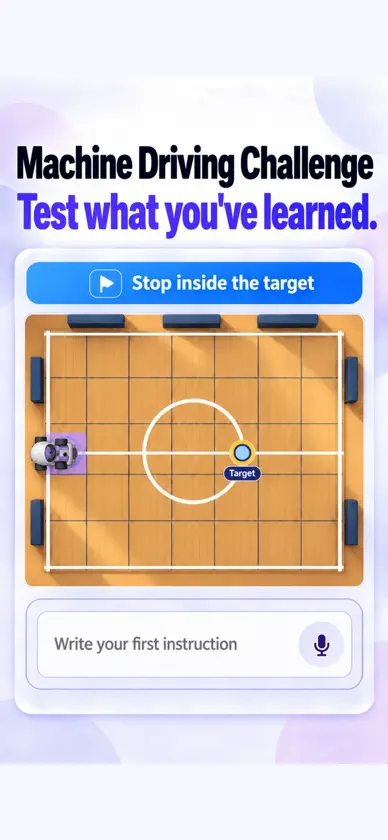
Turn an idea into a project you can run. VibeBlocks is a learning app where you practice using AI by making interactive art, Arduino circuits, micro:bit projects and games. Describe what you want, examine what AI creates, then run the result in the app. Use what you observe to ask for changes and make your instructions more precise. Start with a course or an idea of your own Follow lessons with a clear goal when you need a starting point. Read what a project should do, run it and observe the result. Then apply the approach to a project of your own, changing the colors, movement or response to an input. If you already have an idea, start a project and describe it to AI. Practice AI coding, step by step 1. Describe the behavior. Explain what you want to make and how it should respond. Your request becomes the prompt for the project. 2. Read what AI creates. Examine the code or blocks available in your project to see the sequence of actions, repeated behavior, and connections between inputs and outputs. 3. Run and check. Tap the screen, play the game or try a simulator input. Compare what happens with what you intended. 4. Ask for a change. Explain which part should behave differently, then run the project again. Practice reading, evaluating and improving AI-generated work. Make art that responds to a tap Create interactive visual effects, such as fireworks that respond when you tap the screen. Observe where and when the effect appears, and describe the colors or movement you want. Experiment with artwork that connects an input to a visible response. Try circuit projects in the Arduino simulator Build and run an Arduino circuit project without a physical board. For an LED that repeatedly turns on and off, observe how long each state lasts. Ask for a longer on-time or a faster blink, then compare the result. Explore how timing and repeated actions affect the circuit's behavior. Connect inputs and outputs with micro:bit Try button-and-LED projects in the micro:bit simulator. For example, start with a project that displays a heart when you press button A. Compare the LED display before and after the press to see how an input produces an output. You can practice in this simulator without a physical board too. Build a game and play it yourself Move the character and check whether the controls and difficulty feel the way you intended. Choose an element to adjust, describe the change to AI, and play again to examine the difference. Develop your idea through what you see and experience in the game. AI generation and Arduino simulation require an internet connection.
What's new
Version 4.13.5 · Nov 11, 2026
Preview course content and learning goals before you start. We improved the flow for reading, running, and refining AI-created projects, made Arduino circuit editing and project saving and recovery more reliable, and added a weekly learning summary to your profile.
More from Hayeon Jeong

You might also like
 Workshop for ArduinoSiu Yuen Ho
 Arduino Pocket ReferenceVipin Nair
 Arduino Programming TutorialALG Software Lab
 Arduino Programming ProALG Software Lab
 엘리스 ELICEElice Inc.
 웨이메이커 - 국내 최초 ONE-STOP 진로 솔루션Major Map, Inc.
 Learn C LanguageALG Software Lab
 PingPongRobotRoboRisen
 Learn Electronics & ArduinoMEHMET CANKER (TR)
 코딩챌린지YOUNGKYUN KANG