
PureWrite
Yechiel Ben David
No ratings yetProductivityAges 4+
Screenshots





About this app
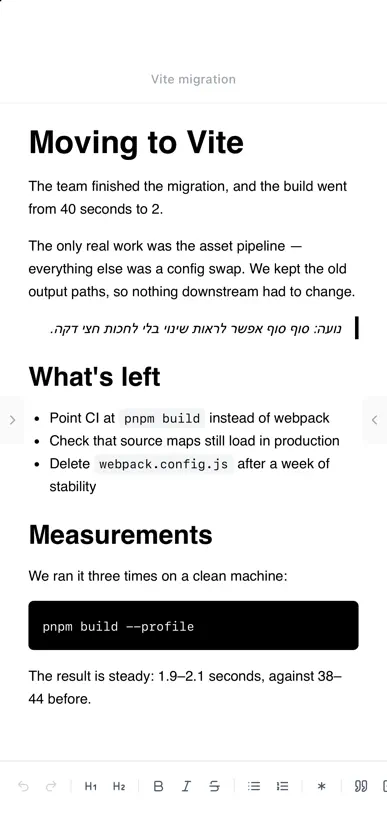
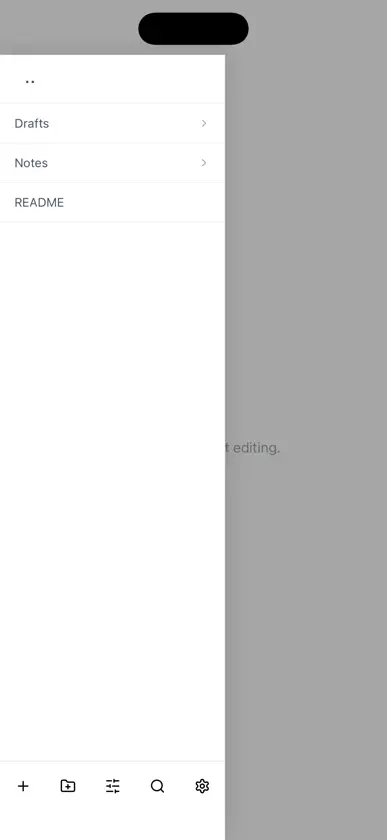
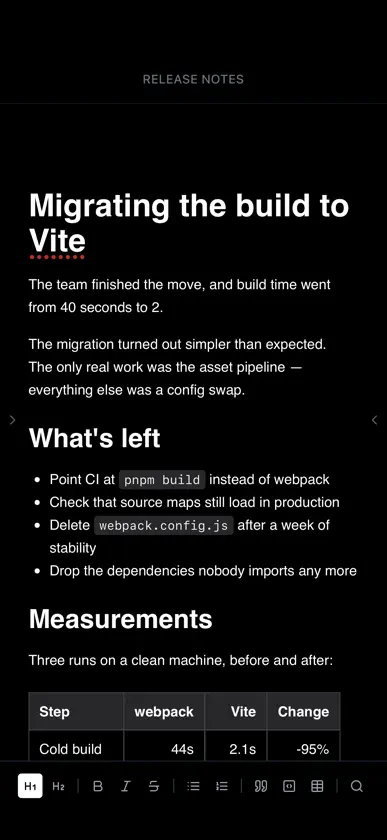
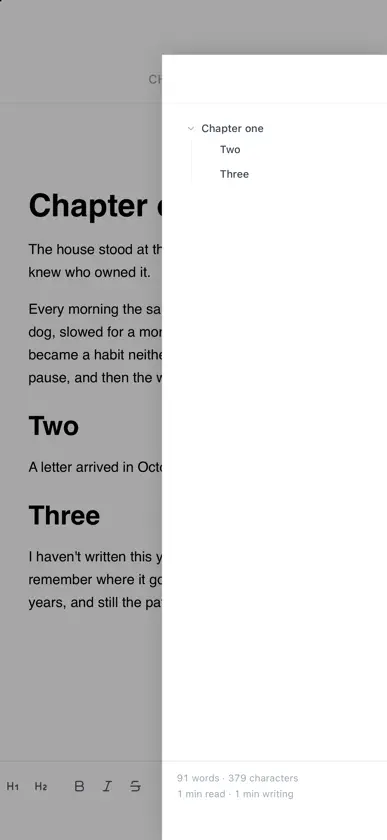
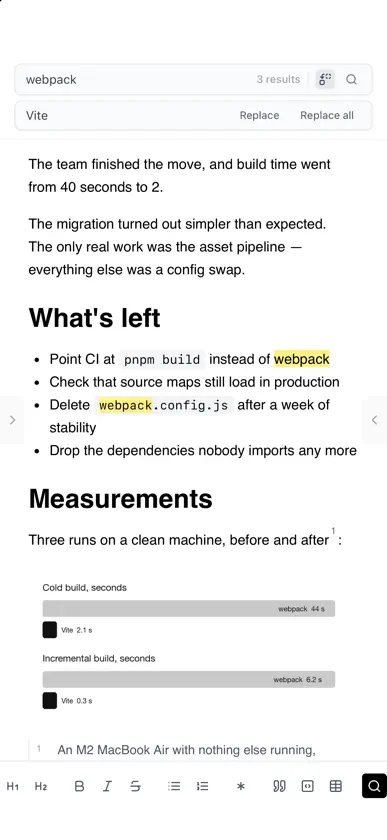
PureWrite is a writing app that gets out of the way. Open a folder of Markdown files you already keep, open a document, and start typing. The file sidebar and the table of contents fade out completely — not dimmed, gone — until only the page is left. Move the pointer back and they return. Nothing else is on screen. No tabs, no split panes, no graph, no badges, no notifications, no sync spinner. One document at a time, by design. That is the whole idea. Everything else is there to serve it. • A folder you already have. No import step, no vault format, no database. The same folder can stay an Obsidian vault or a git repository — keep using them. PureWrite is simply the window you open when the task is to write. • Formatted text, plain files. You edit the document as it looks, and the file on disk stays ordinary Markdown — tables and links included. • Search the whole folder for the moment you do need to leave the page, with the context around every match. • Footnotes and images, kept in the file as you wrote them. Drop an image in or paste a screenshot, and it is saved beside the document. • Focus mode and typewriter scrolling, find and replace, quick open (⌘P), and a word count that stays out of sight until you look for it. • A first-line indent that makes long text read like a printed page — on the right in Hebrew, on the left in English — and undo and redo right in the toolbar. • A toolbar you can pare down to nothing. Keep as many of the 18 buttons as you want, or none. • Hebrew and English in one document, each paragraph facing the direction its own words ask for, with nothing written into your file to make it work. • Autosave a second after you stop typing. There is no save button to remember. Nothing leaves the device: no network, no account, no telemetry. macOS, iPhone and iPad. Free, with no in-app purchases.
What's new
Version 1.1.6 · Oct 28, 2026
• Move to…: move a file or folder into another folder. In edit mode, tap the folder icon beside it and choose where it goes. A document keeps its images and links when it moves. Fixed: on iPhone and iPad, the Done button above the keyboard threw away the name of a new file or folder. It now creates it, as Return does.


