
VoiceClock - Talking
Shinichi Aokawa
No ratings yetProductivityAges 4+
Screenshots






About this app
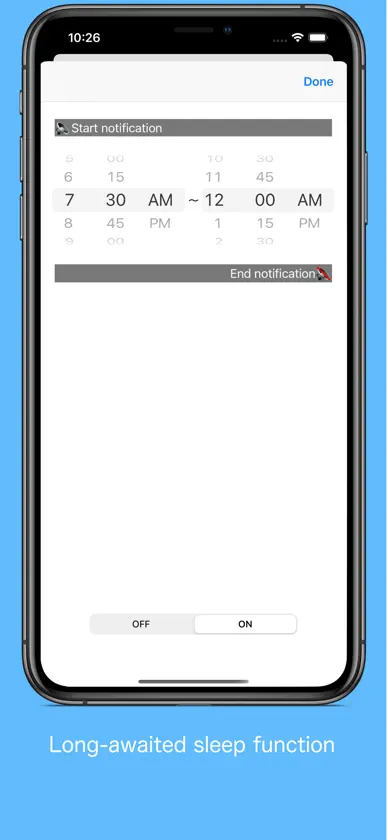
Even if put it in a pocket to lock your iPhone, This app inform the time. By Starting the application, can be edited freely the words before and after the time if the desk clock. For example, "now" 8:00 "Let's go" It is possible. (Please write the character in the language currently used) 【Please】 When enabling sound effect, please select other than "banner is Persistent" in notification setting so that voice notification will not be interrupted. 【The following languages are supported for voice notification at lock time】 ※ Japanese, English, Chinese, Korean, Russian, German, French, Italian, Dutch, Arabic, Greek, Turkish, English (Alex) ※ The English voice notification is made for 12 hours 00: 00 to 11: 30 (Example 1: 12: 00 AM, Example 2: 11: 30 AM) 12: 00 ~ 23: 30 (Example 1: 12: 00 PM, Example 2: 11: 30 PM) It is expressed as. How to use ※ Clock · (Analog / digital, background color, font) setting can be switched by swiping left, right, up, and down. · Receive a notification via voice the time you tap the "Talking". · We will inform you by voice time and shake. · You can switch by tapping the "ON" or "OFF" the time signal notification. ※ Setting · You can edit the words before and after the time of the sandwich voice notification. · You can select the language of the device other than setting. · It is possible to select 10 types of sound effects and sound OFF. · You can change "Notification interval", "Time format", "Notification with shake". ※Sleep · You can set the time zone to stop the voice notification. (It does not correspond to a 1-minute notification interval) ※ Relaxation time · How is the Use simple massage function using the vibration of the iPhone, you can try to heal mind while listening in your favorite music.
What's new
Version 14.9 · Aug 15, 2026
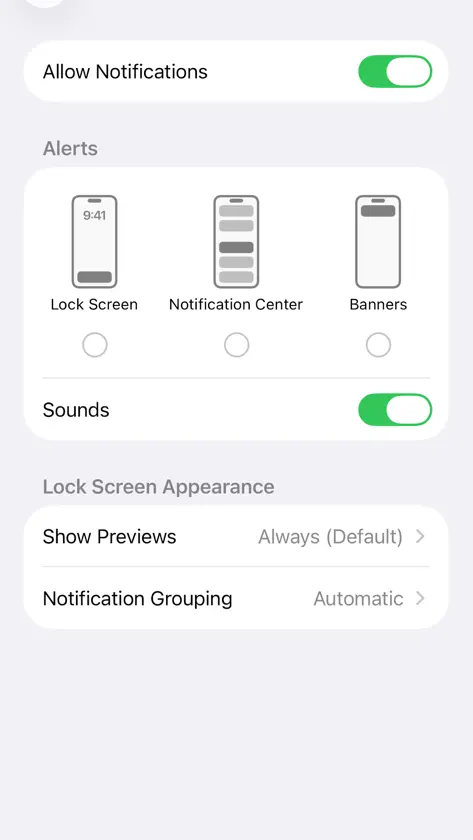
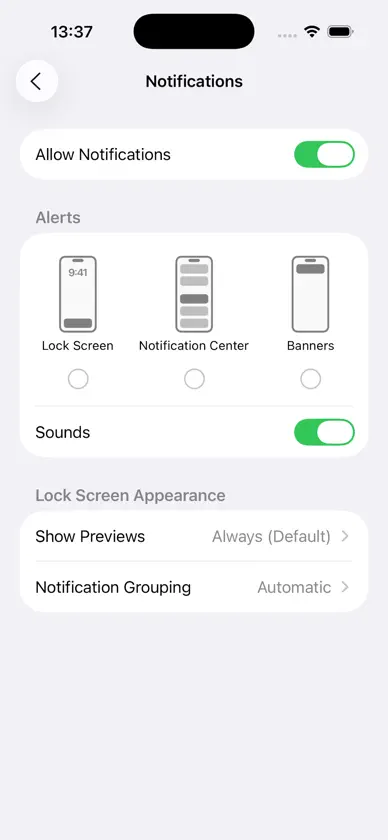
Thank you for using "VoiceClock". We have fixed bugs and improved performance so that you can use it more comfortably. To all voice over users [How to sound a voice notification without displaying a banner on the lock screen] Please use [Settings]-[VoiceClock]-[Notification] of iPhone to the following settings. 1. Turn on Allow notifications 2. Select notification center only 3. Turn on the sound If you are using iWatch, please set it as well.
More from Shinichi Aokawa


You might also like
 Student SecretaryASAYIL ALMARRI
 Perspective TranscribeTechopolis Online Solutions, LLC
 Spongee: Save, Revisit, RecallWen Jian Kwok
 Notas AnidadasBrasilia Tec
 Meeting Notes - ConfidentialJustin Lettau
 ChimerHwasung Kim
 Just Start: Enfoque TDAHEstus Holdings LLC
 SpeakingClockMANABU IKEUCHI
 FaceDial PRO Photo DialerTenTal
 i勤怠7ワンダフルフライ株式会社