
Screenshots




About this app
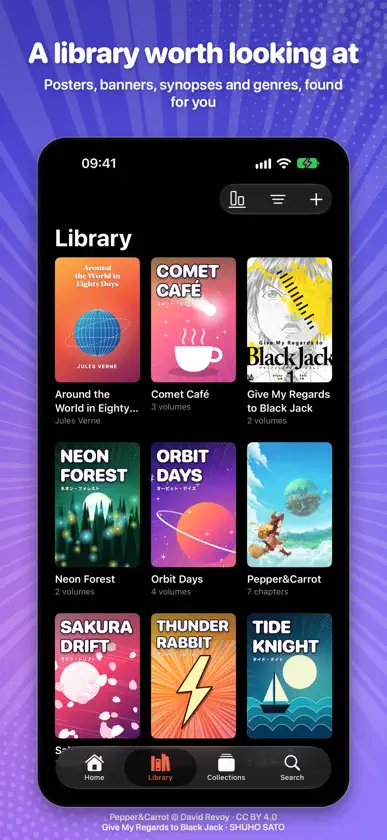
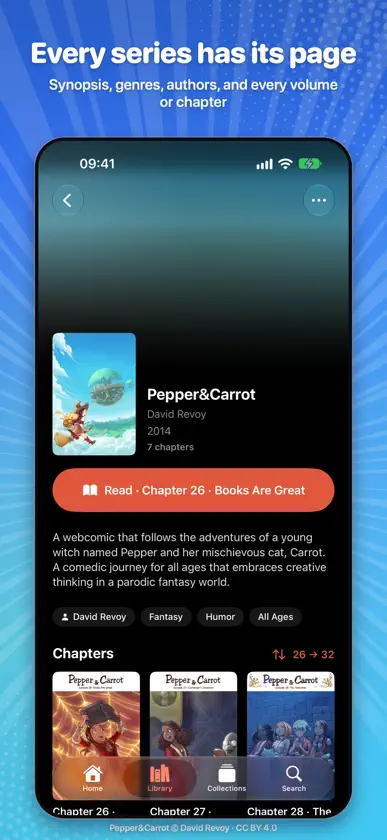
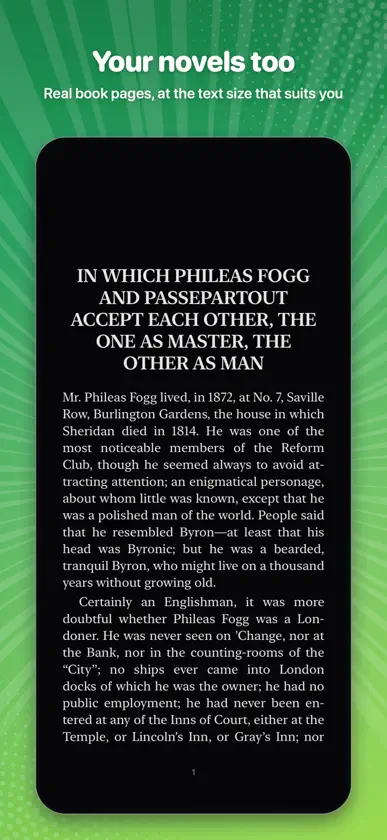
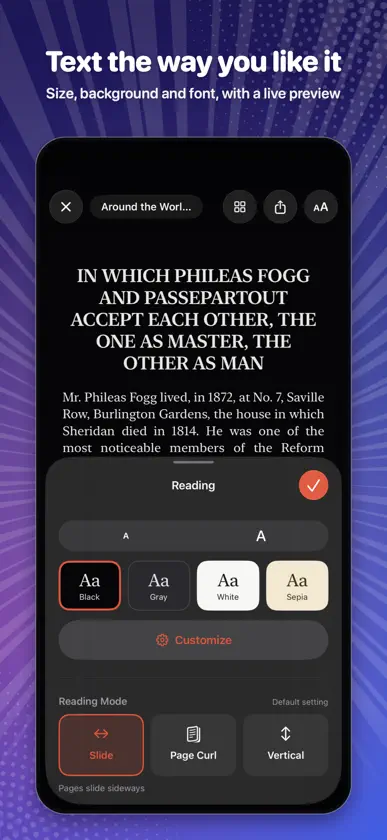
Cool Reader turns the manga, comics, BD and ebooks you already own into a library you love to browse, and reads them the way they were drawn. A LIBRARY THAT LOOKS THE PART • Every series gets its poster, a wide banner, a synopsis, genres and authors, found for you in free online catalogs. Volumes still in the cloud show their cover too. • Series come from your folders or file names; volumes are numbered and put in order for you. • Home picks up where you left off and suggests the next volume, and so does the “Resume Reading” widget. • Your page follows you across your iPhone and iPad, through your iCloud account. • Fix a match by hand, or turn online lookups off: only series titles are ever sent. • Collections, including smart collections that fill themselves by genre, author, format, reading state, year and more. • Or put it on shelves: every volume standing by its spine, in its cover’s colors or the picture of your choice. Slide a finger and the books come out one by one; tap one and it steps forward with its summary. YOUR ICLOUD DRIVE, NOT YOUR STORAGE • Link a folder in iCloud Drive: nothing is copied. Each volume downloads when you open it, the next one is fetched ahead of time, and finished volumes can give their space back. • Books in subfolders are found, and new books show up by themselves. • Or import files into the app. • A welcome guide to get started, and a how-to for reading from the storage services in the Files app. YOUR LIBRARIES ON YOUR SERVER Cool Reader Server, our free, open-source server, runs on a Mac or a NAS. Read your libraries at home and away, and share them with whoever you choose: joining the server takes a QR code or a pairing code. Each book downloads when you open it, and your page follows you. READ IT YOUR WAY • Swipe, page curl like a real book, or continuous vertical scrolling for webtoons, detected automatically. • “Panel by Panel”: each panel, enlarged, in reading order. • Right to left for manga, left to right for comics; two-page spreads in landscape with the cover on its own; double-page scans kept whole. • Pinch and double-tap zoom, in vertical reading too, where you can zoom out to a whole page; tap zones, a page slider with previews and a grid of thumbnails. • Black, grey, white or sepia backgrounds. • Settings for one volume, a whole series or a collection, and each setting shows where it comes from. NOVELS TOO EPUB novels become real book pages: justified and hyphenated text at the size you like, the same page turns, and facing pages on wide screens. Font, line spacing, margins and theme are set under a live preview of the text. Highlight in five colors, look up a word, copy: the page grid gathers your highlights. MADE FOR IPHONE DUO Unfolded, two pages sit side by side with the gutter on the fold. Fold the phone and the book closes on its cover, or you keep reading on the outer display, as you prefer. At home on every iPhone and iPad too. FORMATS PDF, CBZ and ZIP, CBR and RAR, CB7 and 7z, CBT and TAR, EPUB (comics and novels), folders of images. FREE, PRIVATE, NO ACCOUNT No ads, no tracking, no account. Your books stay in your iCloud Drive, on your device or on your own server. Screenshots show Pepper&Carrot by David Revoy and its translators (CC BY 4.0, images cropped; full credits at www.peppercarrot.com) and Give My Regards to Black Jack by SHUHO SATO. The other series are made up.
What's new
Version 1.2 · Nov 9, 2026
New in Cool Reader 1.2: • Cool Reader Server: your libraries on your Mac or NAS, read at home and away, and shared with whoever you choose. Add › Cool Reader Server…, then your name and password. Free and open source. • Library and Collections: a menu at the top goes from one folder or server to another, and a server’s libraries are its collections. • Home: the book you’re reading stands out on its banner or on its cover’s colors. • CBR (RAR) and CB7 (7z) open like CBZ. • Your page follows you across your iPhone and iPad, through your iCloud account. • Panel by Panel: each panel, enlarged, in reading order. • Novels: highlight in five colors, look up a word, copy. • “Resume Reading” widget. • Vertical reading: pinch to zoom in, or out until a whole page shows. • Shelves: Options › Spines… picks the picture on a series’ spines, or one of yours, and Wall… the background behind the shelves. • A welcome guide to get started, and a how-to for reading from the storage services in the Files app.


