
VoiceForge Reader
ROMAN SERPER
No ratings yetUtilitiesAges 4+
Screenshots



About this app
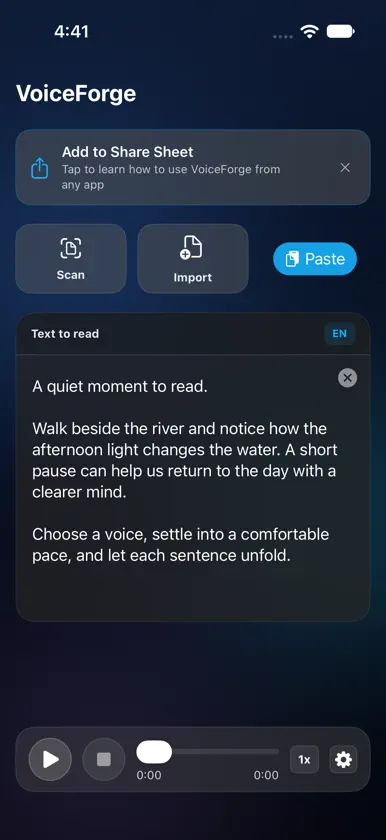
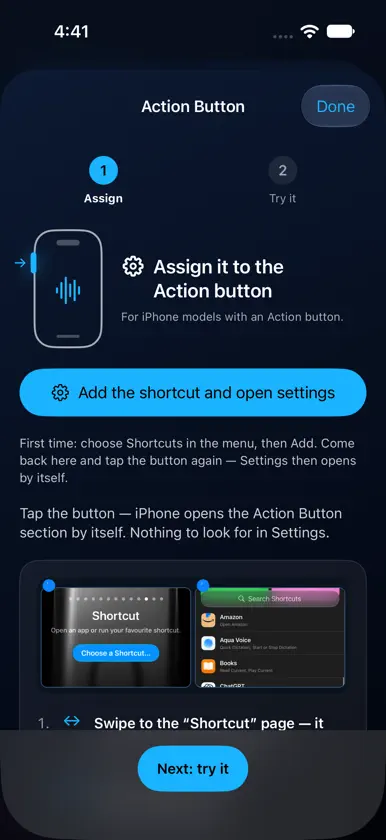
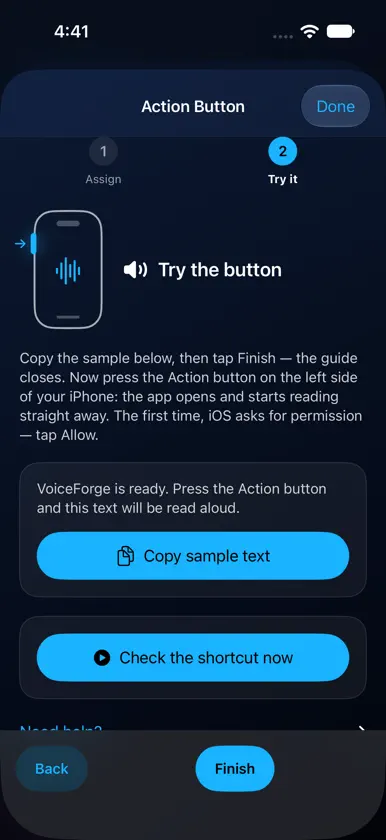
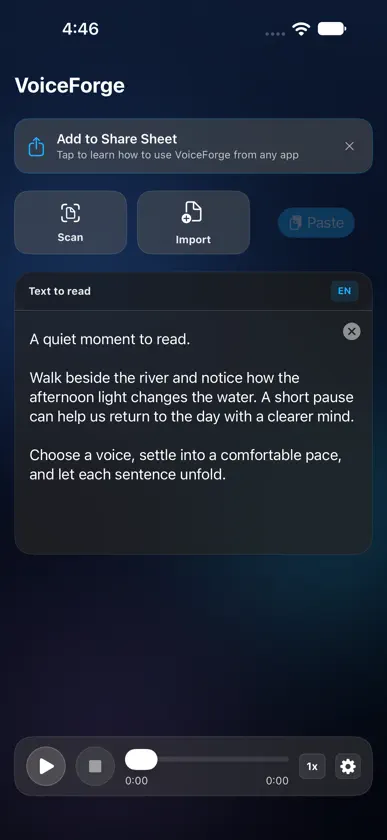
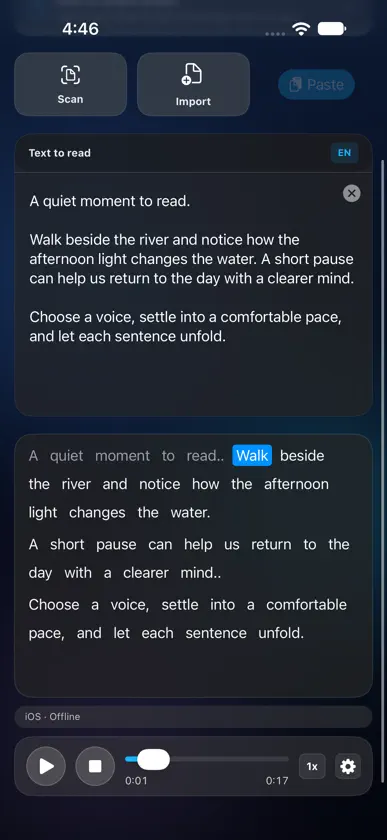
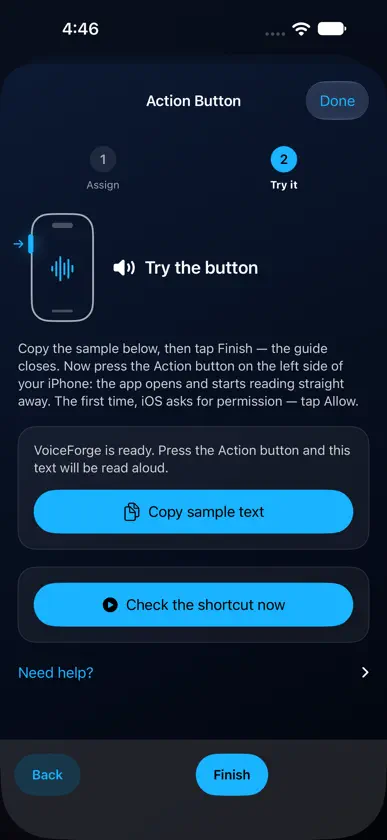
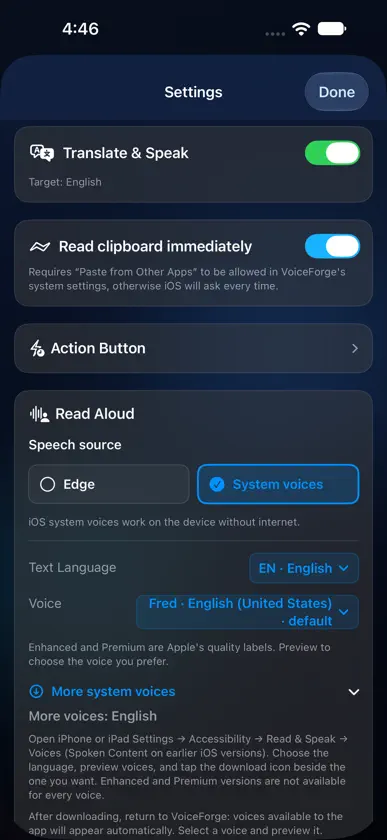
Turn text, printed pages and PDFs into speech. VoiceForge Reader helps you listen to what you choose, follow the words as they are spoken, and read alongside a translation. READ WITH THE ACTION BUTTON On a compatible iPhone the in-app guide does the setup: tap Add the shortcut and open settings, confirm the import in Shortcuts, then tap the same button again to open the Action Button settings, choose Shortcut and select VoiceForge Reader. Copy text, press and hold the Action Button, and reading starts in the background. The guide is available in Settings and Help. CHOOSE YOUR VOICE Use Microsoft Edge voices online or installed Apple system voices on your device. Save language and voice choices separately for each source, preview voices, and find guidance for downloading more Apple voices in iOS Settings. BRING YOUR OWN TEXT Paste text, share it from another app, import a PDF or text file, or scan a printed page. Crop, rotate and recognize text locally with the document scanner. TRANSLATE AND FOLLOW ALONG Translate supported language pairs with Apple's on-device translation services. View original and translated text in synchronized panes, follow karaoke highlights, and tap words to move through the reading. Longer documents can translate progressively as reading continues. STAY IN CONTROL Adjust playback from 0.5x to 2.0x, pause, seek and restart. Continue listening in the background, with Lock Screen and Dynamic Island controls on supported devices. The interface is available in English, French, Russian, Ukrainian, Arabic, German, Spanish, Italian, Japanese, Korean, Turkish and Chinese. Speech voices and translation languages have their own availability. Microsoft Edge voices require an internet connection and send the selected text to Microsoft for speech generation. Installed Apple voices render speech on your device. OCR is local. Apple voices and translation resources may need downloading, and supported languages vary. Action Button and Dynamic Island features require compatible hardware and iOS versions. VoiceForge asks for Edge data-transfer permission during the first launch and sends text to Microsoft only after you allow it. To stop sending text, choose an installed Apple voice in Settings. No account is required. VoiceForge does not include advertising or app analytics SDKs. Reading While Locked, Translate & Speak and Read clipboard immediately are on by default and can be switched off in Settings. Open-source notices and LGPL source/relink materials: https://risvoice.github.io/voiceforge-legal/support.html#open-source
What's new
Version 1.1.1 · Nov 11, 2026
• First launch now sets everything up: choose your reading language, allow Edge speech once, and start reading. Nothing else to configure. • Reading While Locked, Translate & Speak and Read clipboard immediately are on by default; each can be switched off in Settings. • Action Button setup is one button and two taps: the guide adds the shortcut, then opens the Action Button settings for you. • Fixed a silent Action Button read that ran in the wrong extension instead of the app. • Choosing an installed Apple voice stops Microsoft Edge data transfer: the voice source is the privacy control. • Improved Edge voice authentication, playback recovery and background reading. • Fixed pauses between paragraphs in long documents and recovery after a brief connection problem.
You might also like
 AI Text To Speech: Voice ForgeHeliogram Labs
 TGSpeechBoxTamas Geczy
 Text To Speech Reader: TTSRAman Singhal
 OfflineTTS深圳市原饴创新科技有限公司
 Text To Speech: AI ReaderPavel Hedzko
 ToBe SAID: Offline TTS EngineBakhtiar Lukman
 EAS ToolsMason Miller
 Simple Voice ReaderWalter Claw Software LLC
 TalkToLLMPineapple
 Primacy MobileJLAudio